Secure Remote Access to Home Assistant with Arqut: A Step-by-Step Guide
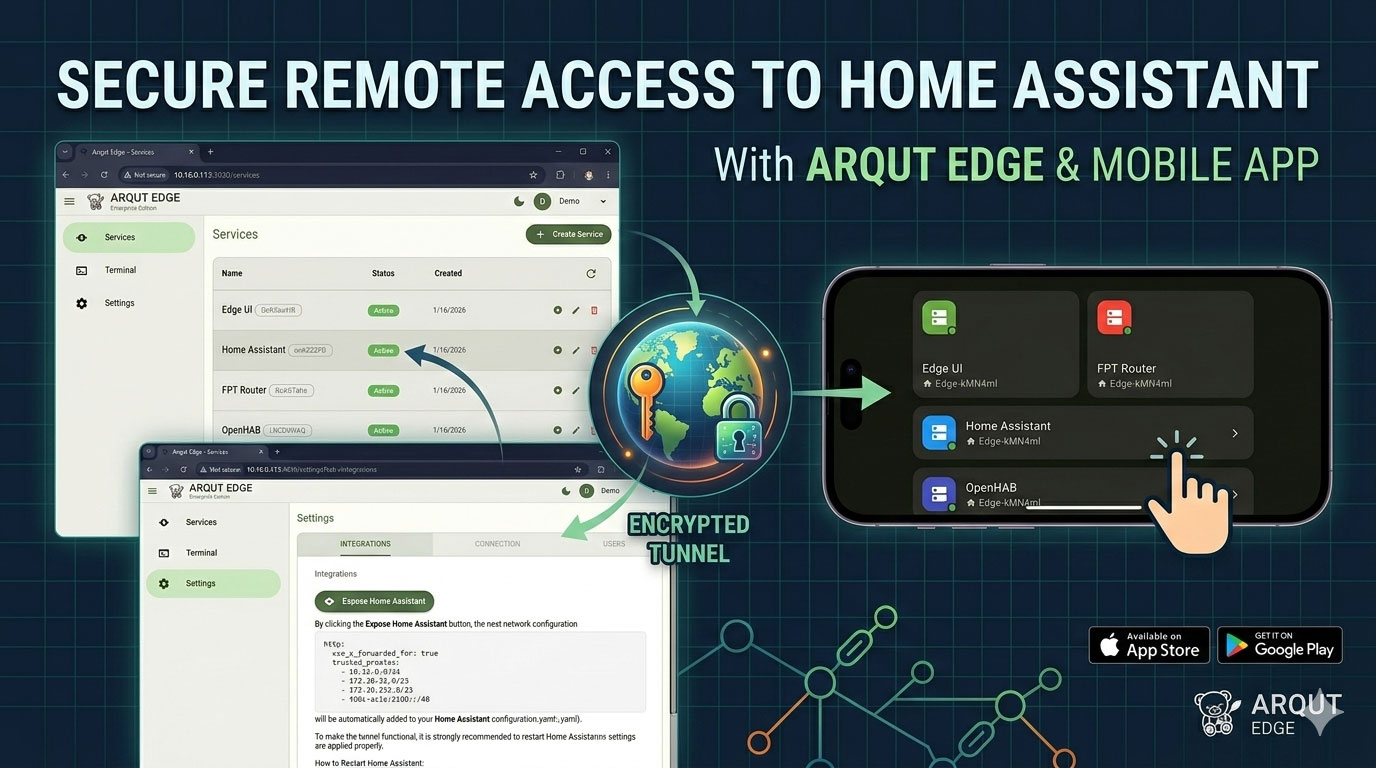
Home Assistant is the heart of your smart home, but accessing it securely from outside your local network often involves complex port forwarding or VPNs. Arqut offers a streamlined, secure alternative that lets you connect to your dashboard from anywhere in the world using a high-performance encrypted tunnel.
In this guide, we will walk through how to set up the Arqut mobile app and Arqut Edge to access your Home Assistant instance on the go.
Step 1: Set Up the Arqut Mobile App
Before configuring your home server, you need the control center on your phone.
- Download: Install the Arqut app from the App Store or Google Play Store.
- Account Creation: Open the app and sign up using your preferred SSO provider: Continue with GitHub, Google, or Apple.
Step 2: Install Arqut Edge for Home Assistant
To bridge your local Home Assistant instance to the Arqut cloud, you’ll need to install the Arqut Edge App.
2.1 Add the App Repository
- Navigate to your Home Assistant dashboard.
- Go to Settings > Apps > App Store.
- Click the three dots (top right) and select Repositories.
- Paste the following URL and click Add:
https://github.com/arqut/arqut-ha-addon
2.2 Install the App
Search for “Arqut Edge EE” in the App Store and click Install.
2.3 Initialize and Link
- Once installed, click Start.
- Click Open Web UI.
- A QR code will appear on the screen. Open the Arqut App on your mobile phone and scan this code to link your Home Assistant instance to your account.
- Wait a few seconds for the setup to complete. Your “Edge” device is now online!
Step 3: Exposing Home Assistant for Remote Access
By default, Arqut creates an “Edge UI” service, but you’ll want to expose your Home Assistant dashboard specifically.
- In the Arqut Edge Web UI, navigate to the Settings/Integrations tab.
- Click the “Expose Home Assistant” button.
Automatic Network Configuration
When you click this button, Arqut automatically updates your configuration.yaml file. This ensures Home Assistant trusts the Arqut proxy, adding the block same as following:
http:
  use_x_forwarded_for: true
  trusted_proxies:
    - 10.16.0.0/24
    - 172.30.32.0/23
    - 172.30.232.0/23
    - fd0c:ac1e:2100::/48
Note: This step is crucial for security. It allows the Arqut tunnel to pass traffic to your dashboard while keeping unauthorized requests out. To ensure the changes take effect, it is recommended to Restart Home Assistant.
Step 4: Accessing Your Home from Anywhere
Your setup is complete. To test it, disable Wi-Fi on your phone and switch to cellular data:
- Open the Arqut app.
- Go to the “Sites” tab.
- Tap on your Edge device.
- You will see the Home Assistant service listed. Tap it, and your dashboard will load instantly!
Pro-Tip: Adding More Services
Arqut isn’t limited to just Home Assistant. You can add other local network services—like a NAS, camera UI, or router settings—via the Arqut Edge dashboard to make them accessible within the same mobile app.